Nest security cameras are very popular nowadays and many users value their performance and smart features. Nest Cams are easy to set up and use and you can control them using your phone.
However, like any electronic device, Nest Cams are prone to random performance-related issues that sometimes can be solved by performing a reset on the camera. In this quick guide, we will show you the two most basic methods on how to reset a Nest Cam to factory settings.
There are two ways to reset a Nest Cam:
- Resetting the camera through the phone app. You need to remove it from the system and install it back.
- Using the reset button that can be found on the camera. But, only certain cameras come with a physical reset button.
Sounds easy and it is, however, once the camera is reset to factory settings, you need to set it up again and bring it online. In some cases, the camera may have been added on some other devices and cannot be removed. For more details, we’ll explain later.

How to reset Nest Cam?
Nest Cam is considered an entry-level security camera system and can be controlled through the app. Using the app you can arm/disarm the camera, manage its setting and features, adjust notifications, etc.
Via the same app, you can reset Nest cam back to factory default settings. Or you can use the reset button located at the back of the camera.
Keep in mind: Resetting the Nest Cam means the camera will erase all the previous settings such as the WiFi password, footage settings, notification settings, etc. Basically, all will be gone. So, before resetting take a few screenshots of the settings to make things easier when re-activating the camera.
Reset Nest Cam via the phone app
Open the Nest app and ensure it’s updated to the latest version. Navigate to the camera that you want to reset and then click “Settings”.
Select “Remove Device” and then confirm. Pretty much that’s all, the settings are erased on the camera and you need to reinstall it again. Just follow the prompts on the app and enter the camera’s information. If you took the screenshots (before erasing them), use that information to quickly set up the camera from scratch.

Using this method you can reset practically any Nest camera. Find the camera on the app, remove it from the list and install it back. That’s all it takes.
Reset Nest Cam via the reset button
Another way is to use the reset button which can be found at the top or bottom of the camera depending on the camera model. Simply inspect the camera on all sides and find the reset button.
In some devices, the button is easily noticeable and accessible, and you can press it with your finger. However, in some Nest camera models, you might need to use a paper clip or toothpick to reach the reset button via the small hole.
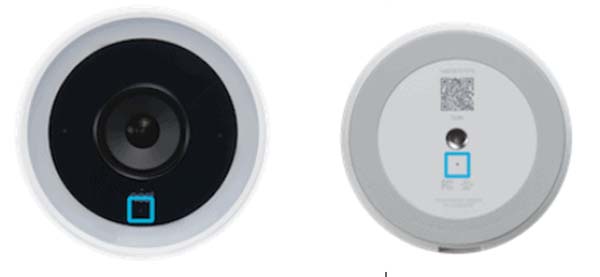
Press and hold the button for 10-15 seconds or until the status light starts blinking yellow. Release the button once the blinking stops and the light turns to white (which indicates that the reset was done).
If you check the Nest app, the camera should appear offline. Wait until it power cycles and then you can re-add it to the app.
How to bring the Nest Cam back online (after the reset)?
After the camera is reset, it will appear offline. When it’s offline, it means the camera won’t be recording anything and that can compromise your security.
If the camera shows offline, go through the following checkup list for quick troubleshooting.
- Check your internet connection.
- Check if the cables are plugged in.
- Check if the Nest app needs to be updated.
- Check if the Nest services are down.
- Reboot the camera.
- Reboot your router.
- Reset Guard Neset.
Nest Cams need a steady and reliable internet service to communicate with the main server. Without the internet, you can’t arm/disarm the camera or receive alerts/notifications on your app. So, consult the above list to rule some common issues that may cause the camera to show offline.
Why did Nest Cam stop working out of nowhere?
Usually, Nest Cam randomly stopping working indicates a problem with the internet connection. Maybe there was an internet interruption or internet outage in your area. Other factors include outdated apps (always keep them up-to-date), incorrect settings, low battery, other power-related issues.
If the camera is exposed to the elements, maybe the water went in and damaged the motherboard or the connectors (by the way, Nest Cam is not waterproof).
If resetting didn’t fix the camera’s issues, maybe the camera has a hardware problem and you may need to call a technician. Or send it back to Nest for warranty and get a new one.
How to remove previous owners from Nest Cam?
Resetting the camera by holding the ‘reset’ button will bring the camera back to default settings but it won’t remove the camera from the account of the previous owner (if someone passed the camera to you).
To remove a Nest Cam from a Nest account, sign in to the Nest app, then select Home. Then go to the settings, where you’ll see the list of the devices associated with the account. Select remove for each product and then confirm it.
Conclusion
If you got a Nest Cam that for some reason is not working properly, you can reset it by using one of the methods listed above. You can reset the camera via the Nest app by removing the device from the list, or by using the reset button at the camera’s back.
Nest Cams can stop working out of nowhere when there is internet interruption, power loss or the Nest central is down. If the issues are not solved by resetting them, then it’s time to contact Nest support for further assistance.