

Many people choose to use the remote control to access and control their security systems. Although, using a mouse hooked up to the recorder is much easy, quicker, and more flexible.
If you’re wondering why your Hikvision remote control is not working, this is the place where to find the answer.
Using a remote control you can navigate through your CCTV recorder’s menu, go full screen on certain cameras or speed them up, playback the saved footage, backup on a USB disk, adjust other settings, and much more.
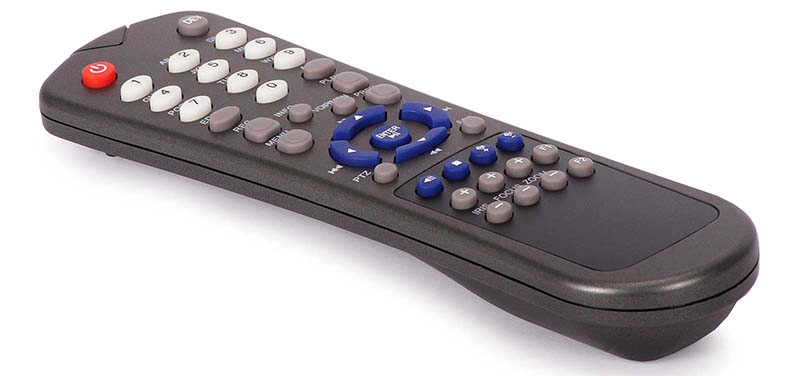 Most of the Hikvision recorders (DVR or NVR) come with a remote control packed in the box that sometimes may not work at all, not react on time, or randomly go crazy. Follow the tips listed below to fix any possible issues that you’re having with your remote control.
Troubleshooting Remote Control of Hikvision recorders
The first step is to check if the batteries on the remote control are dead (or not installed at all). Once the batteries are verified, try to aim the remote control at the IR receiver on the front panel of the recorder. Get closer just for testing purposes.
If there’s no response after you press any button on the remote, follow the procedure below to troubleshoot the problem:
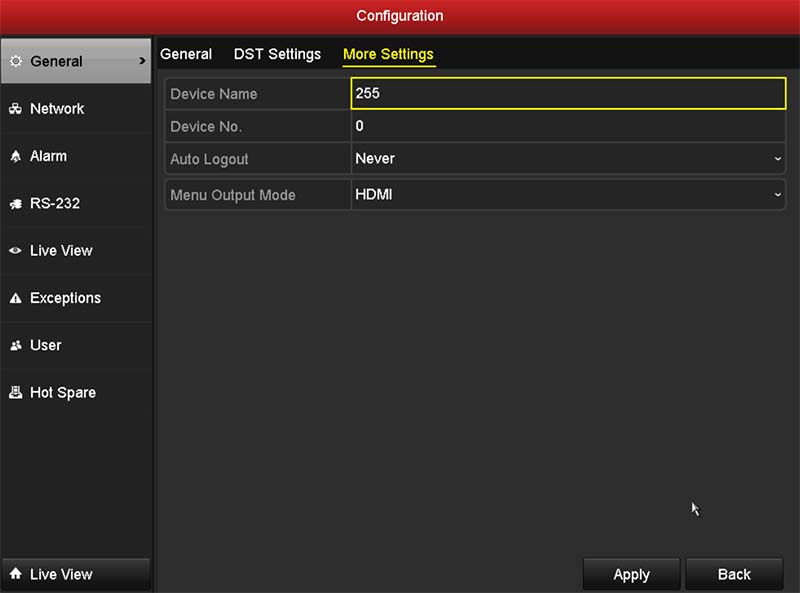
- Go to Menu > Configuration > General > More Settings by operating a mouse connected to the USB port of the recorder.
- Check and remember the device number. The default number is 255. This device No. is valid for all the IR remote controls. Basically, you will link that specific remote control with the recorder using the device number. As long as they match, they will be able to communicate.
- Press the DEV button on the remote control.
- Enter device No. from step 2
- Press the ENTER button on the remote.
If the remote control is operating properly (you see the light blinking), but there is still no response from the remote, please check the following:
- Batteries are installed correctly and the polarities of the batteries are not reversed.
- Batteries are fresh and not out of charge.
- IR receiver is not obstructed, ensure there’s a clear path between the remote control and the recorder.
If it looks like a random button is always pressed then inspect the remote control and check if any button is stuck. Sometimes if water goes inside the remote control, the buttons may be attached and shorted.
If the issue doesn’t get solved, contact your reseller/dealer and get a new remote control. Usually, the remote controls are universal across all Hikvision products. So, there’s no need to provide any model number to the manufacturer.
Conclusion
If your Hikvision remote control is not working, try the tips listed above. Namely, check the batteries, ensure no button is stuck, and add the correct ID number. If you can’ get it fixed, contact the dealer or the Hikvision support team.
Lastly, since the remote controls are universal regardless of DVR or NVR model, you can easily swap it out with a new one and it will be automatically linked to your recorder.
