

Some users are experiencing an error with the Hik-Connect app, once they access the camera via the app, the NVR starts to reboot automatically. This issue shows on Hikvision NVRs and their OEM version (which are often sold under local brand names).
This problem is caused by a software bug on the Hik-Connect app that can be fixed by updating the app. As a matter of fact, Hikvision has released a technical bulletin regarding this issue that explains how to fix the issue.
According to the Hikvision Tech Support department: the Hik-Connect team has released a new update to address the reboot technical issue affecting NVR with firmware v3.4.100. The updated app is available through the App Store for iOS users and Android users can download the app from appstore.hikvision.com.
Since the release of Hik-Connect App v4.15 in early June 2021, few NVR series have experienced system rebooting or device offline while live streaming thru the Hik-Connect app. The affected devices and firmware versions are:
- NVR with firmware v3.4.100
- Q series NVR with firmware v3.4.100
- ERI-K series NVR with firmware v3.4.100
- Hik-Connect App v4.15.0 0609 on both iOS and Android platforms.
When attempting to livestream NVR in the Hik-Connect app v4.15, the channels can start loading up to 95% but eventually fail to livestream. The system may then have offline status in the Hik-Connect account because the system (NVR) will reboot by itself when attempting livestream via the app. This issue is due to compatibility problems between the NVR firmware and current release Hik-Connect app.
How to fix the NVR rebooting issue when accessing via Hik-Connect
As we said, the main method of solving this problem is by updating the Hik-Connect app to the latest version.
Adjusting the NTP settings in the NVR
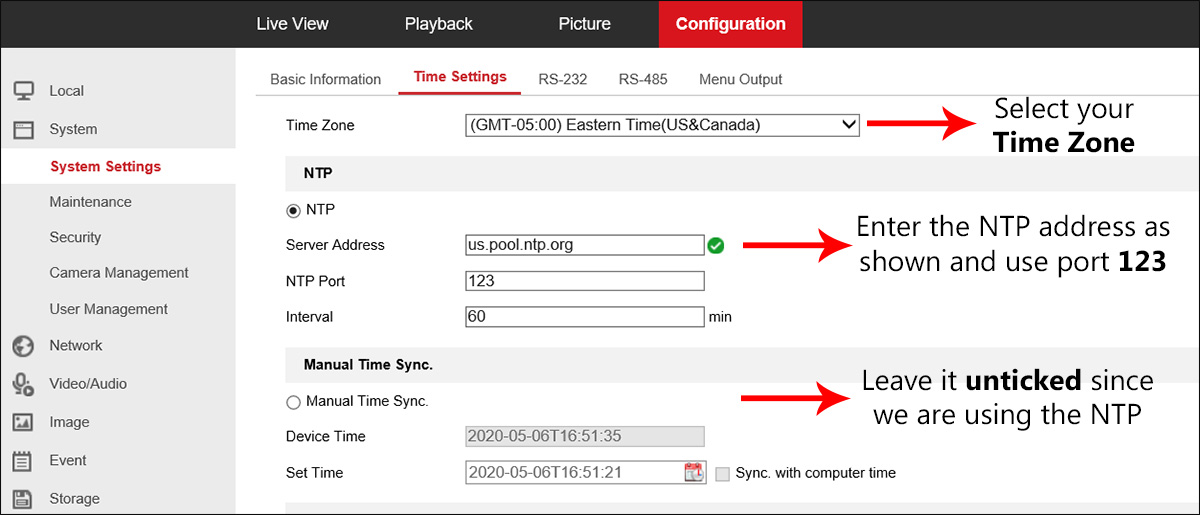
If the system has not been set up with NTP and DST, enabling the NTP may allow the system to stay online when live streaming via the Hik-Connect (and not reboot the NVR). Keep in mind that this trick works by enabling the NTP mode only, if DST is also enabled during the process, then the system may still experience the same issue.
The iVMS-4500 mobile app to live stream channels within the Hik-Connect account
Another solution is to use the iVMS-4500 app instead of Hik-Connect. iVMS-4500 still supports the livestream and playback mode of the Hik-Connect device.
Download and install iVMS-4500 from either PlayStore or AppStore. Once installed, hit the menu button on the top left corner > tap “Not Logged in” option > login button > enter Hik-Connect account credential to login > select the device and its channel to live view.
Downgrade the Hik-Connect app
Another solution involves downgrading the Hk-Connect App and installing a previous version that doesn’t cause the NVR to reboot. This method is applicable to Android users only.
- Download the Hik-Connect App v4.14 on this link.
- Uninstall the Hik-Connect App v4.15 from the Android phone
- Install the Hik-Connect app v4.14 then add the system again and you should see the cameras without the NVR rebooting.
Update the NVR’s firmware
When experiencing issues with Q series NVR (such asDS-76xxNI-Q2/), you can upgrade the firmware to the latest version and the issue will be solved. Contact the seller or Hikvison to get the right firmware and upgrade it.
If none of these methods works, then you should contact Hivkison directly and ask for support. Provide the NVR model number and proof of purchase. Additionally, you can contact the dealer from where the unit was purchased from.
