Did you forget your password for your UNV NVR? In this step-by-step guide, we will be covering what information is needed to generate a master password, where to get that information, and how to do the password reset procedure on Uniview (UNV) NVR.
After you generate a master password (which is temporary), you can use that password to access your Uniview NVR and eventually modify your old forgotten password.
Lost password on Uniview NVR
Step 1. First of all, try to access your UNV NVR by using the default username and password. You never know, maybe your recorder is still using the default password. Use the following details to log in to the NVR
- Username: admin
- Password: 123456
If the above is unsuccessful, try the other account to log into your NVR:
- Username: admin
- Password: admin
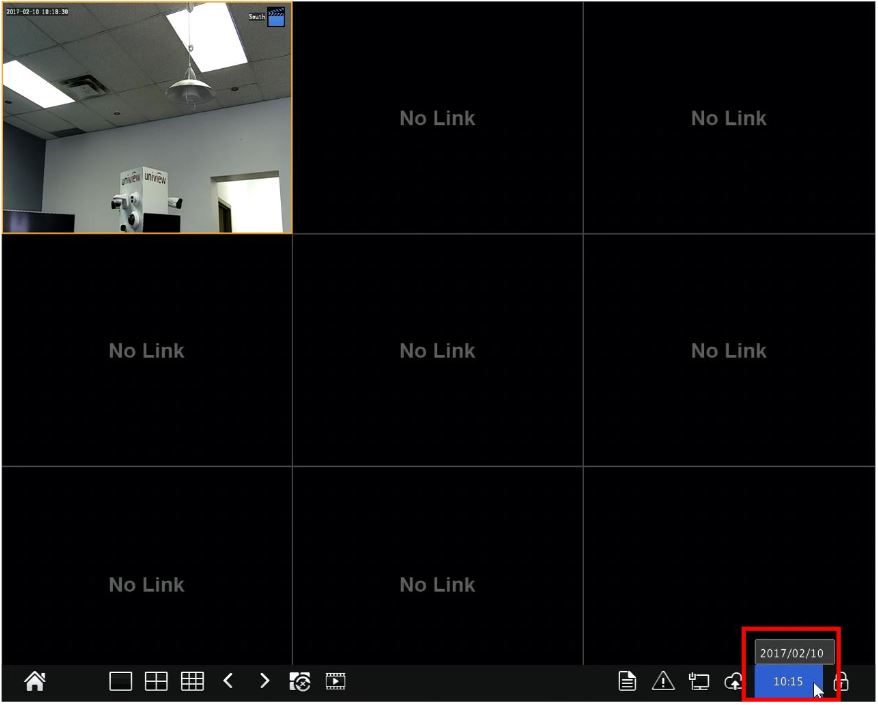
Step 2. Verify the date on the NVR is correct. The password recovery methods demonstrated there will NOT be successful if the correct date cannot be confirmed.
The generated master password is date sensitive, that’s why you need to confirm the timestamp on your recorder.
Connect to the NVR directly and hover over the displayed time with your mouse cursor. Make a note of the current date showing up over there.
 Step 3. Recover the Uniview NVR password using EZCloud. Note: This step will only work if the NVR is connected to a known EZCloud account. If the EZView phone app is used with this NVR, the login details for that are the same as the ones used for EZCloud.
Go to https://en.ezcloud.uniview.com/. Log in using your EZCloud account (note: this is not the same account as the one used to log in to the NVR).
If the EZCloud account information is not known, or the NVR has not been connected to EZCloud, go to the next step. If the password for the EZCloud account is lost or forgotten, read this article to reset the password of EZCloud account.
Once logged in, you should see your NVR listed under “My Cloud Devices”. Click “Retrieve”.
 On the password retrieve screen, verify that the “Valid Date” is the same date as you recorded from your NVR. If it is different, change the date to match the date from your NVR.
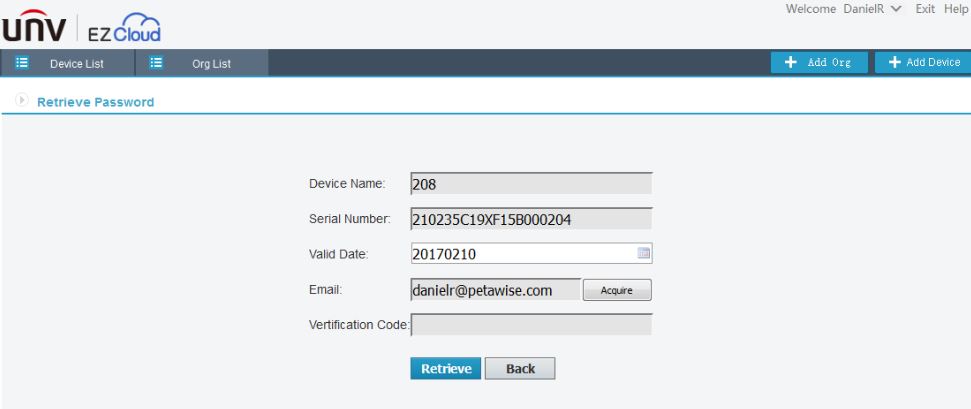 Step 4. Check the listed email address. Make sure that you have access to this email inbox. Then click the “Acquire” button.
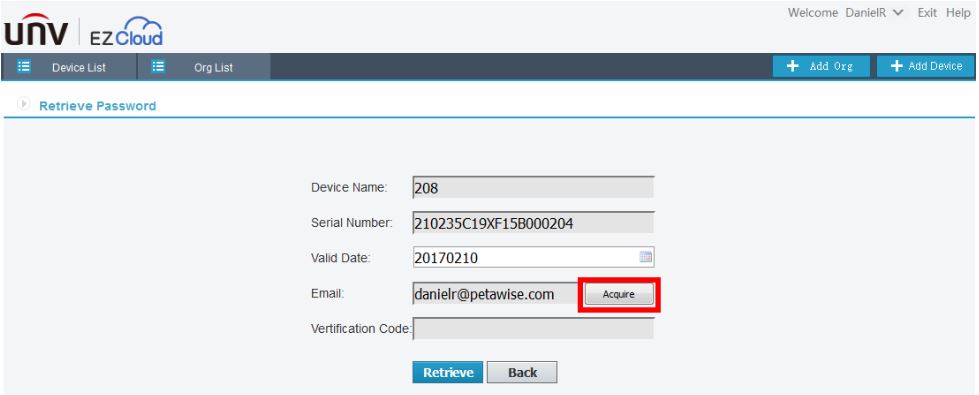 Step 5. After pressing the “Acquire” button, check the inbox for the email address linked to your EZCloud account for a message from en.ezcloud@uniview.com.
This message contains a verification code. Type or copy the verification code in the “Verification Code” box on the EZCloud website, then click the “Retrieve” button.
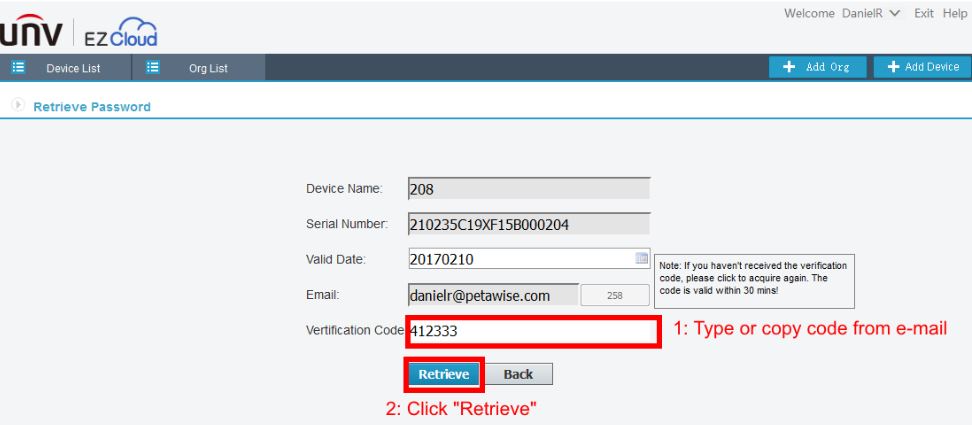 Step 6. If you are successful, you will be given a temporary password.
 Step 7. Return to the NVR login screen, and log in with the following details:
- Username: admin
- Password: The temporary password provided to you.
Note: The password generated is only valid for one day. Change the password on the admin account once you have successfully logged in to the NVR.
If you cannot retrieve your password through EZCloud, you must request a temporary password through Uniview technical support.
Before contacting technical support, record the Serial Number of the NVR. This can be found with the EZTools software, or on a sticker on the bottom of the NVR.
Serial Numbers are designated with “SN:” before them on the sticker. They should be 20 digits in length, and begin with “210”. Inform technical support of both your Serial Number and the date on your NVR if it is different from today’s date.
Note: This guide valid for Uniview camera and their OEM which included brands such as: 2M Technology, Cantronic, CCTV Security Pros, CNB, CP Plus, Dax Networks, Dorani, Eclipse, Envirocams, Fermax Australia, Galaxy, Geovision, Gess, Global, Grupo PV (Voxel), Invid Tech, LTS, Norden (Eyenor), Openeye, Oviss, People Fu, Q-See Presidio line, Raster, Revo, Security Camera Warehouse, Uniview Tec, Western Digital.