Let’s say you lost or you forgot the password for the EZCloud account (which is used by Uniview CCTV systems). In this guide we will show the reset procedure to retrieve the lost password of an EZCloud account. Follow the steps one by one and you’ll be done in less than 5 minutes.
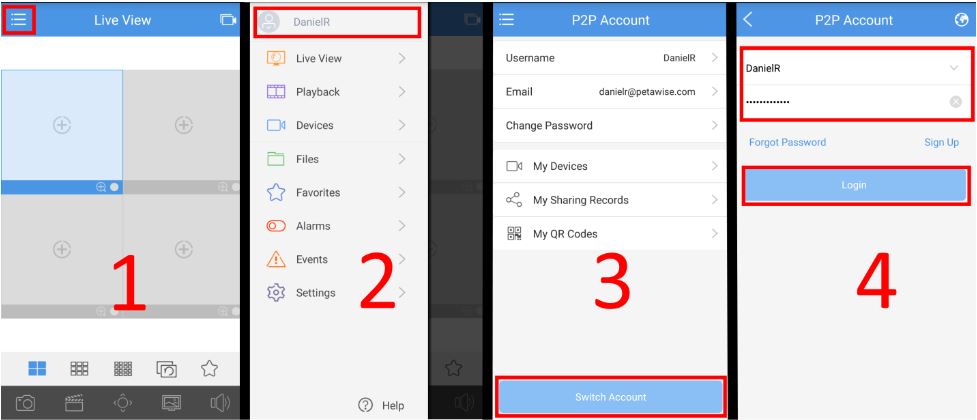
Step 1. Make sure that you have access to the inbox of the email address associated with your EZCloud account. If you are unsure which email address is associated with your EZCloud account, you can view the linked email address from the EZView phone app (if you are currently logged in).
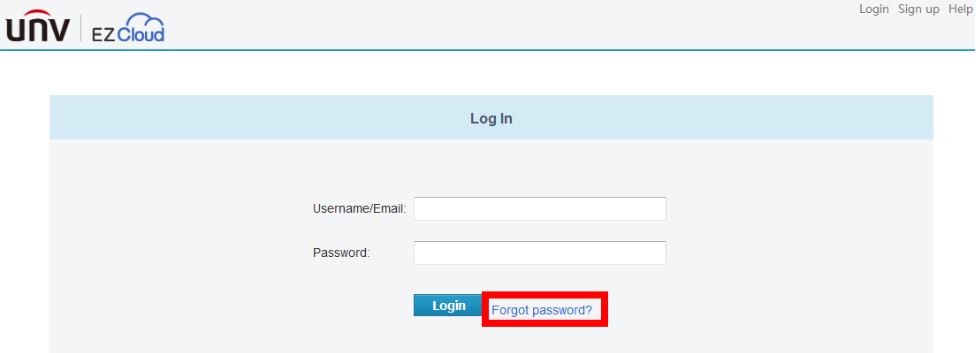
 Step 2. Reset password via email. Go to https://en.ezcloud.uniview.com/. Click the “Forgot Password?” link.
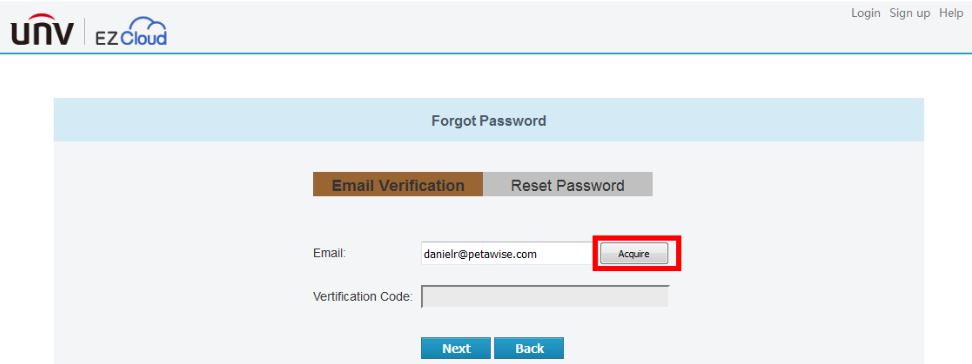
 Step 3. On the “Forgot Password” page, enter the email associated with your EZCloud account, then click the “Acquire” button.
 Step 4. After pressing the “Acquire” button, check the inbox for the email address linked to your EZCloud account for a message from en.ezcloud@uniview.com.
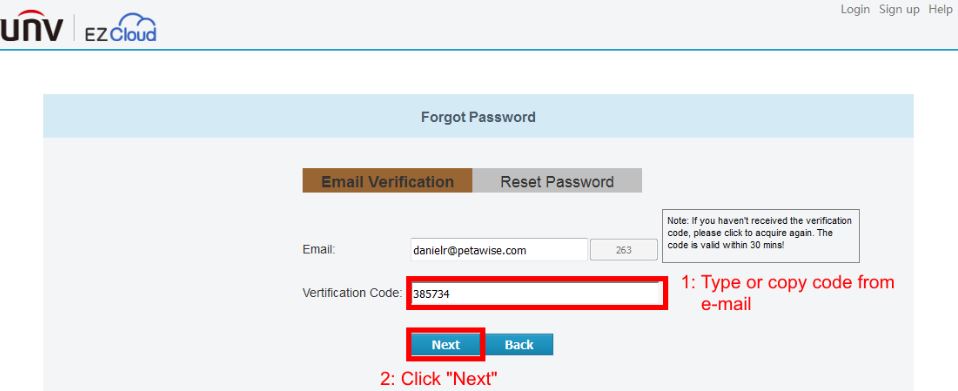
This message contains a verification code. Type or copy the verification code in the “Verification Code” box on the EZCloud website, then click the “Next” button.
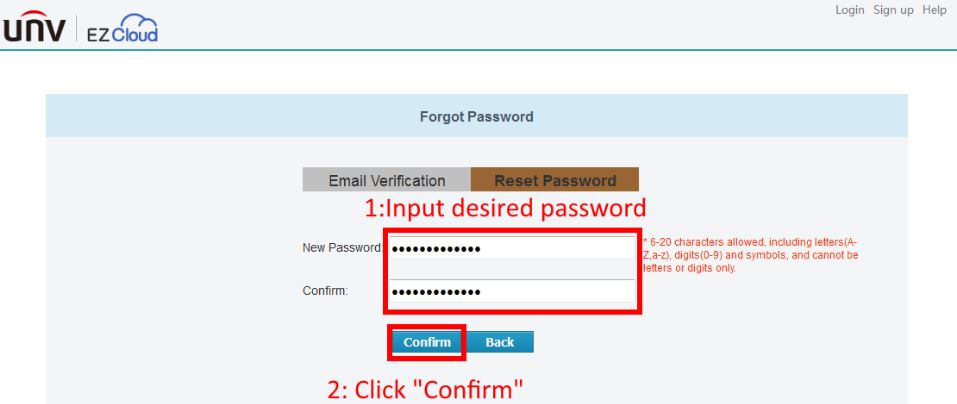
 Step 5. If you are successful, you will be able to reset your password. Type your new desired password into both boxes, then click “Confirm”.
 Step 6. If you are currently signed in to your account on the EZView phone app, you will need to sign out, then sign back in(with your new password) to view the live view. Follow the image below to do so: