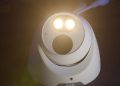
Audio can be very helpful in Uniview CCTV systems when installing cameras around POS systems, medical buildings, and conference rooms.
Getting someone’s voice on a recording can mean the difference between solving a case or not. It can be used in medical facilities to defend against or prove malpractice, and can be used to keep track of meetings in conference rooms.
The convenience of IP cameras with audio is that no cables have to be run back to the recorder. All audio will be encoded in the camera and sent through the network to be recorded. Here on this detailed how-to guide will explain how to set up audio on Uniview NVR or DVR.
Connecting MIC to camera
Each Audio enabled camera has a two wire lead coming out of the pigtail. One is purple which is the positive audio. The other cable is a gray ground cable.
The best way to connect a MIC to these cables and get the best audio quality is to have a MIC with a RCA connection. Follow the steps below to connect the RCA MIC to the two audio wires.
- Connect a Video balun to the two audio wires coming from the camera. Purple positive wire into the positive side of the balun and gray ground into the negative side of the balun.
- Next connect a BNC to RCA Male connector to the BNC side of the video balun
- Next plug the RCA Male connector into the MIC’s RCA Female port.
At this point the MIC will need to be powered. If the camera model number is IPC3234SR-DVZ28 the camera’s 12volt input can be changed in the camera maintain settings to be a 12volt output.
This output can then power the MIC using the power the camera is getting from PoE. All other camera models will need a 12volt power ran to the MIC.
- After the MIC is powered log into the camera on the web browser.
- Once logged into the camera navigate to Setup > Video & Audio > Audio and change the Audio enable to on.
Listening to Audio on NVR
On a Uniview recorder, to listen to the Audio from the camera the first thing is to set the video stream to have the audio enabled.
To enable the audio stream open the main menu of the recorder and navigate to Camera > Video > and then select the camera channel number under Camera ID. Once the camera is selected and its encode settings are being displayed change the Audio Stream to On.
 After the audio is turned on for the camera exit the main menu and bring the live view images up. Next select the camera that audio is on so that its channel box is highlighted in yellow.
After the camera is selected a small drop down menu will display under or above the camera. In this small menu there is an Audio enable button that looks like a speaker, click this button to enable the camera’s audio.
Remember that to hear audio the monitor will need speakers and the video will need to be over HDMI not VGA.
Getting Audio on 3rd Party Recorder
On most 3rd party recorders the audio stream will need to be enabled in the cameras encode settings directly from the recorder. Once this is done the audio should be able to be heard.
Make sure that the audio is also still enabled inside the camera from the web browser and make sure that the audio can be heard from the cameras directly on the web browser. Remember that the computer you are checking from must have speakers and audio connections hooked up.
If audio can be heard from the camera but it cannot be heard on the recorder try to remove the camera from the recorder and then re-adding it.
This will cause the recorder to re-pull the audio stream and data from the camera. If removing and re-adding the camera does not work, you may need to call the Uniview tech support team.