Do you need to update the firmware of your XMEye camera? Then read this step-by-step guide and you’ll get it done in a few minutes. The procedure is simple and can be done via a PC/laptop.
Make sure you have these things ready:
- The camera’s firmware
- The updating tool
- A computer or a laptop
For more explanations, keep reading the rest of the instructions.
How to upgrade the XMEye camera’s firmware?
The first thing you should do is get the right firmware for your camera or DVR/NVR. Your best option is to call or email the manufacturer or the seller and provide them with the model and the serial number of your unit. They’ll email back the right firmware and you can use it to upgrade your equipment.
Some users try to find the firmware online which is fine if you know what they’re looking for. However, things can get complicated if you update the unit using the wrong firmware. It may go through and the unit will be bricked.
Moreover, the warranty will be void. It’s better to get the firmware straight for the seller than risking having a broken unit that you can’t repair or return.
To start the update, connect the NVR, DVR, or camera to the router or switch via an Ethernet cable. Then use a PC/laptop connected to the same local network as the XMEye equipment. Install the upgrading tool called Device Manager (download it here via Google Drive).
Basically, this tool will scan the local network and list all the devices found on it including IP cameras, DVR, NVR. Let’s say you have an NVR with 4 cameras, the tool will list 5 IP addresses, one for the NVR, the rest for the cameras. An example is shown below. As you can see each unit has a unique IP address.
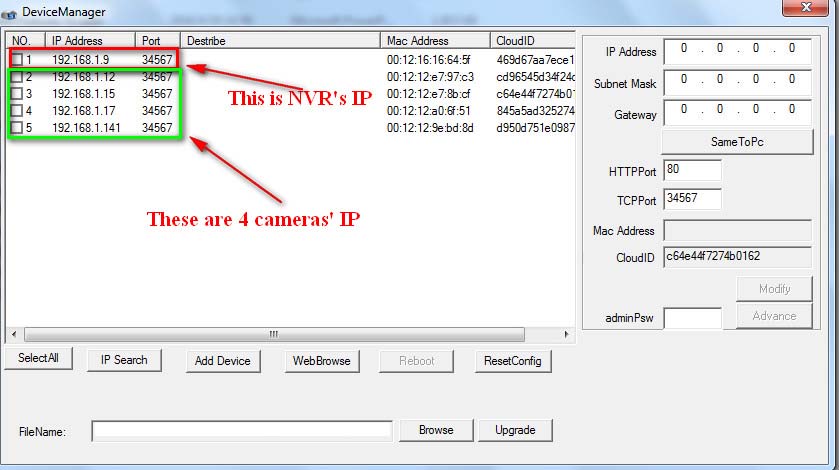 The tool doesn’t exactly tell you which one is which. So, how do you know which one is NVR‘s IP and which one is which camera‘s IP?
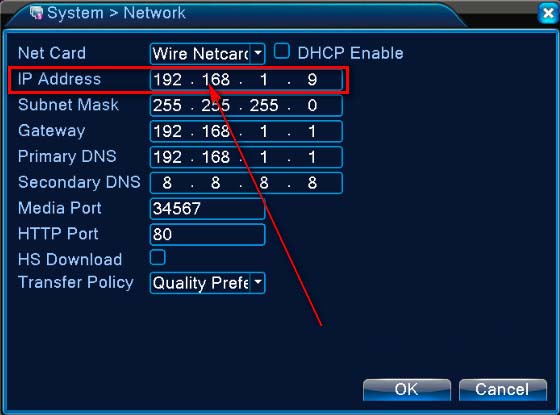
One way to find it is to go to the Settings of your DVR/NVR, access the Network section, and note the IP address of the recorder. In our case, the IP address of this NVR is 192.168.1.9
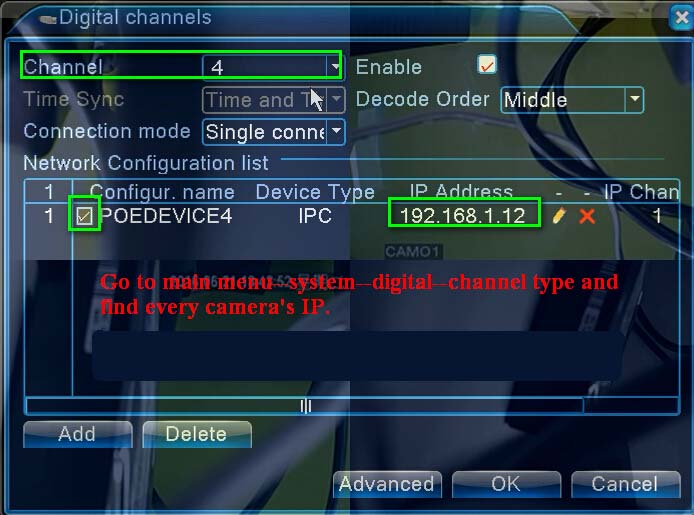
 To identify the camera’s IP addresses, navigate to the Channel of the DVR and you should see there all the cameras connected to the DVR. Below we can see that the camera on channel 4 has the IP address 192.168.1.12. Using the same logic, you can find the IP addresses of the rest of your cameras.
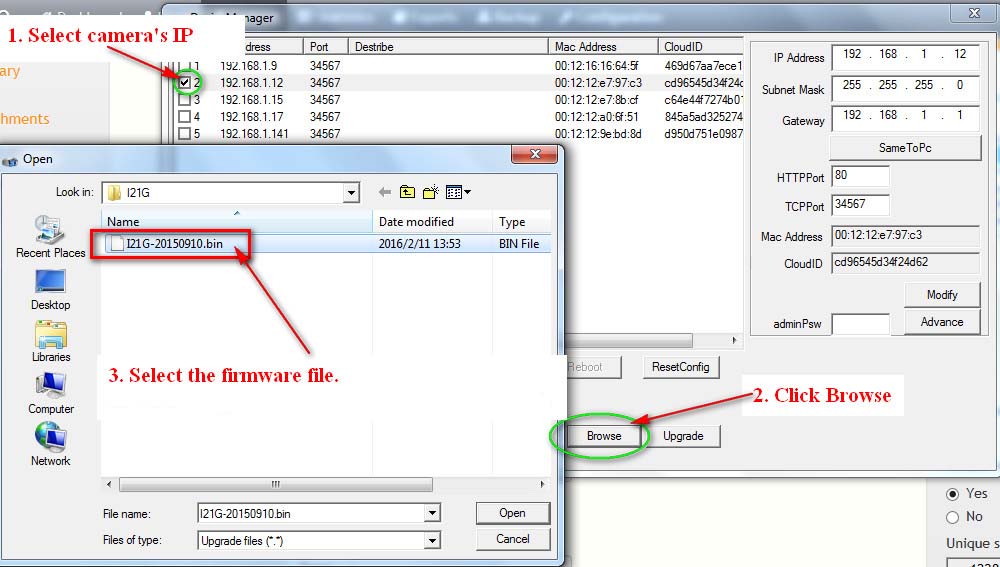
 Tick the camera‘s IP address and then select the upgrading file to upgrade. The firmware ends with .bin and you should have acquired it previously. Click browse, locate the firmware on your computer, and then hit Open.
 Once loaded, click the Upgrade button. You may wait 1-5 minutes for the firmware to go through. Most of the time the unit will auto reboot and come back online updated to the latest version.
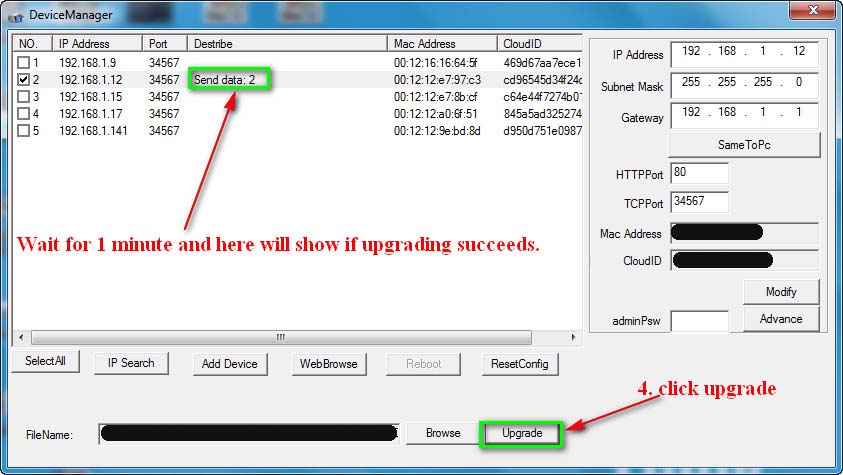 If you get a “fail” message, ensure that the firmware is the correct one. Double-check with the seller that you actually got the right one. Most of the time a wrong firmware will not go through, but sometimes it does and that may damage the unit.
If you don’t see your camera or recorder on the list of the upgrade tool, make sure that all your devices are on the same network. The camera, the recorder, and your computer must be on the same network, they should get the internet from the same router or switch. If they are on a different network, the tool cannot see the equipment.
If you still cannot update the firmware, then you should call the manufacturer or the seller. They can remote in and do the upgrade for you. Sometimes they may ask you for an ID form or proof of purchase.