Sometimes the XMEye recorders show an issue where the cameras’ live view box does not occupy the full screen of the monitor or TV. There’s empty space surrounding the camera’s feed and looks awful as well. And why would you not use all the screen space?
You can fix this problem by following the instructions on this guide and after that, you should see the live view filling all the space in your monitor or TV. It’s applicable to XMEye recorders which are sold under various brand names. You should be okay as long as the menu depicted on the screenshots looks similar.
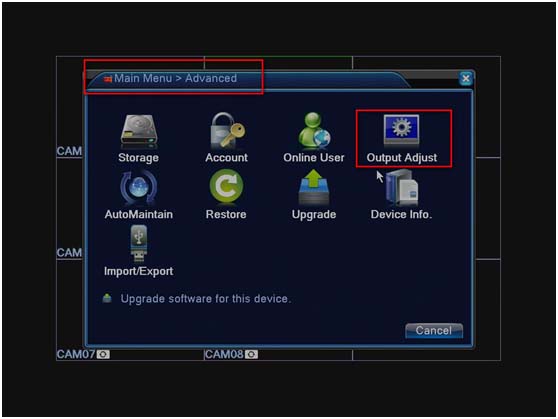
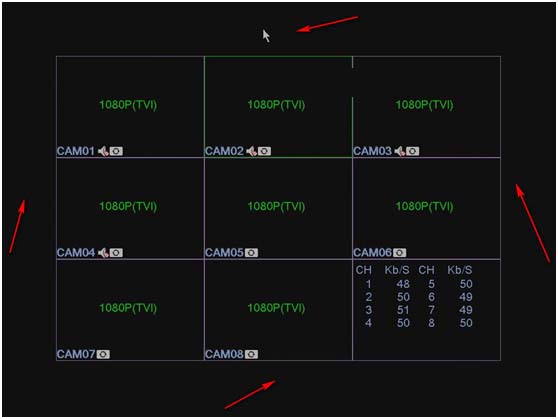 Go to your DVR or NVR and navigate the menu using the attached mouse. Right-click the mouse and navigate to Main Menu > Advanced and then click on Output Adjust.
 In this window, you should locate these parameters “Top Deflate”, “Bottom Deflate”, “Left Deflate”, “Right Deflate”. If you see any other values except 0, then the picture will not fill out all the screen space. In other words, these four parameters should be zero.
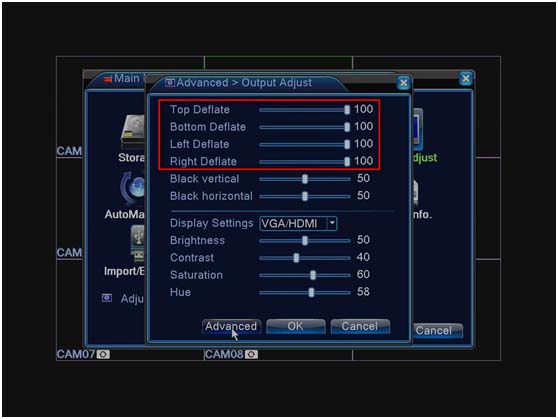 So, set the value of all of them to 0 (as shown on the screenshot below) and then click OK to save the settings.
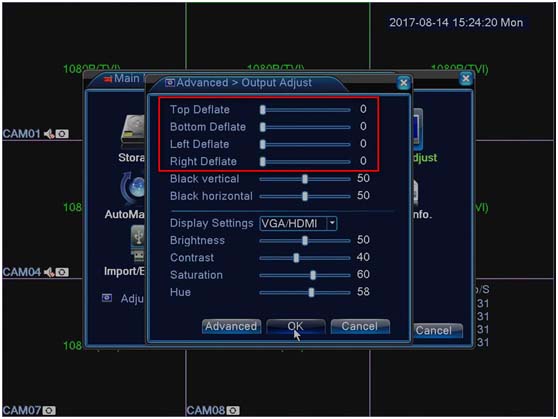 Now, exit the menu and see if the cameras show up fine, filling all the screen space on your monitor/TV.
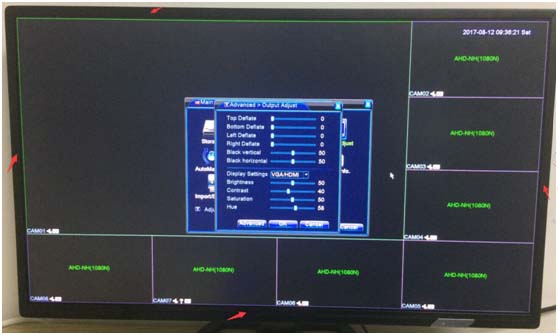 Sometimes you may need to reboot the DVR for the changes to take effect. Additionally, you may need to update the firmware of the recorders to the latest version. Contact the seller of the manufacturer to get the right firmware.
If you’re still having problems, make sure the monitor or the TV supports the resolution of the recorder. Try to press the “Source” button on the remote to let the display auto select the resolution. Most TVs have an “auto resolution” option, enabling it to let the devices solve the issue.