• About
  • Contact
  • Privacy Policy
SecurityCamCenter.com
  • Home
  • Buying Guide
  • Learning & Tips
  • Technical Guides
  • Security Tips
  • Downloads
  • CCTV Glossary
No Result
View All Result
SecurityCamCenter.com
No Result
View All Result
Home Technical Hikvision

How to change camera name on Hikvision NVR/DVR or IP camera

Marco Albertini by Marco Albertini
in Hikvision

Follow these steps to change the camera name on Hikvision DVR, NVR, or IP cameras. In just a few steps you can rename your Hikvision surveillance cameras in the way that works better for you.

It’s always recommended to have your cameras renamed properly, that way it’s easier to monitor them and more intuitive when doing playback or backing up the footage.

Step 1: Log into the DVR/NVR locally (type your username and password). Go to Menu > Camera > OSD (OSD stands for On Screen Display).
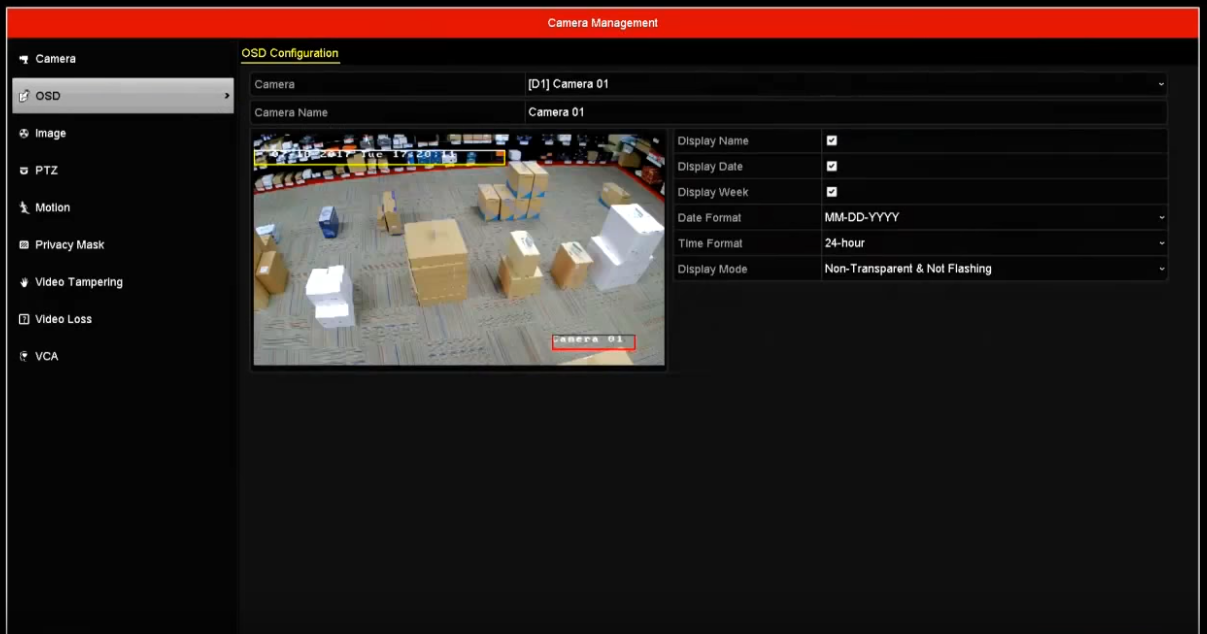
Step 2: Select the camera to modify the OSD configuration using the camera dropdown menu (all the available cameras will be listed on the dropdown menu).

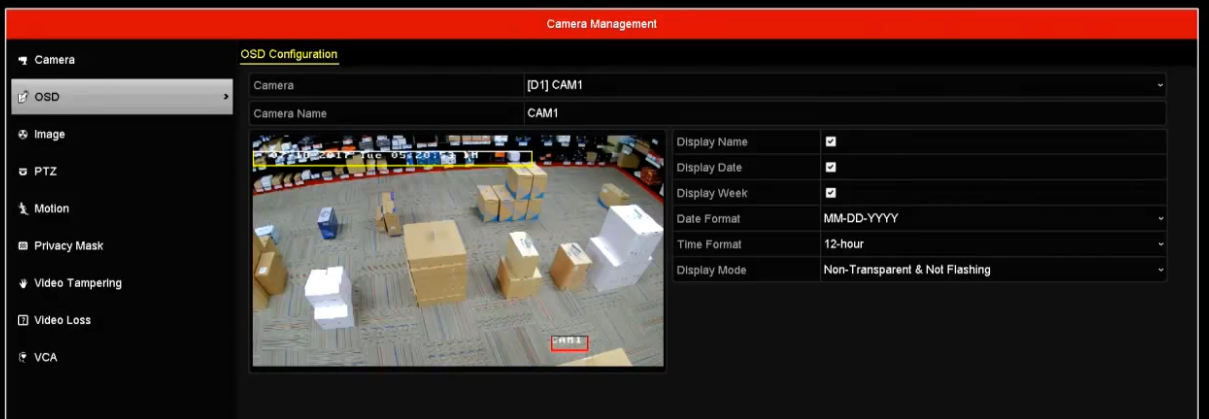
Step 3: Enter the desired camera name in the ‘Camera name’ field. Click the APPLY button to save the settings.
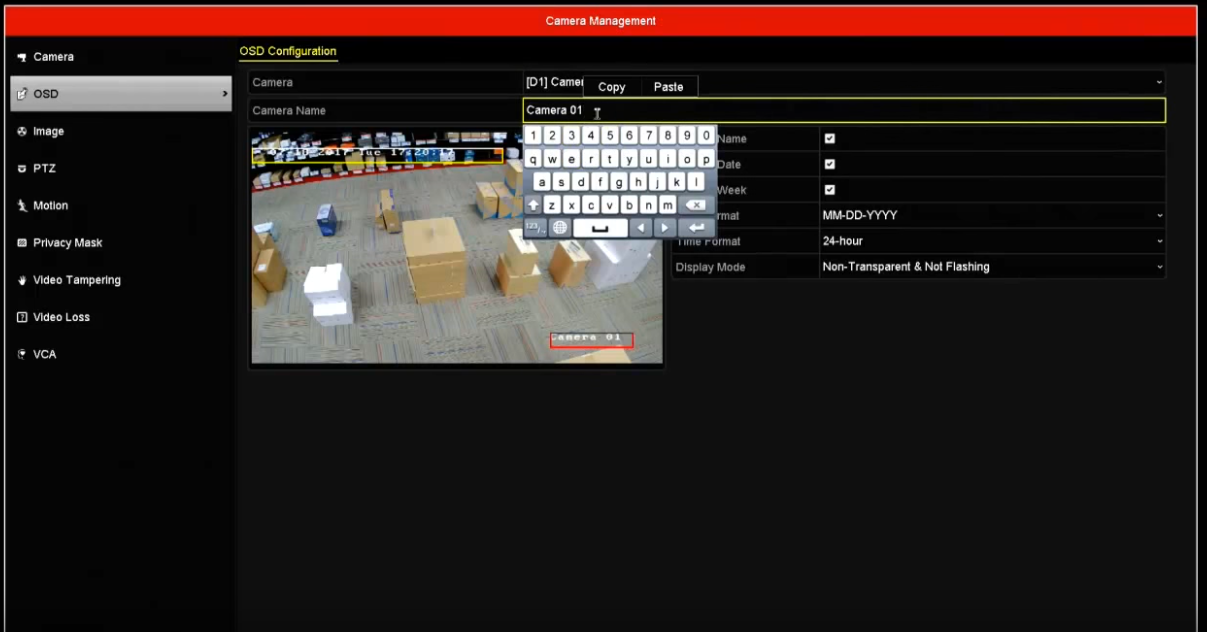
Note: There are a few options on the right side of the menu that may be useful. Such as checkboxes to Display the week, Display the Date, Time Format, Date Format, and Display Mode (we recommend keeping it non-transparent and non flashing).

On the right side, on the camera’s image itself, you can move the location of the camera’s name (or date) by dragging and dropping the box using your mouse.
Marco Albertini

Marco Albertini

Italian-born Marco Albertini, with a background in Computer Science, found his passion in security camera systems, alarms, and cloud services. Based in New York since 2010, he's a sought-after expert, assisting numerous businesses and homeowners in securing their properties with advanced solutions.

Related Posts

Hikvison How-To

How to Set Up Hikvision Smart Hybrid Light Cameras

Hikvison How-To

How to Configure Motion Detection via iVMS-4200 Software

Hikvison How-To

How To Connect Hikvision DVR To Phone (Hik Connect Phone Setup)

Hikvison How-To

How to Fix Recording Exception Error on Hikvision

Hikvison How-To

How to Add and Delete profiles on your Hikvision Security System

Hikvison How-To

Playback Error on Hikvision System: Number of streaming channels exceeded limit (Quick Fix).

Load More

Comments 2

  1. Raj Dhunna says:
    6 years ago

    I changed the name of one camera successfully. Tried to name another camera; keep getting message:
    operation failed. This function is not supported by the camera.
    Can you please advise if I am doing any thing wrong.

    NVR 8 ch poe Hik-vision

    Reply
    • SCC says:
      6 years ago

      Two causes: 1) the camera is not Hikvision (hence the recorder can’t access the settings of the camera); 2) the firmware on the camera (or recorder) needs to be updated.

      Reply

Leave a Reply Cancel reply

Your email address will not be published. Required fields are marked *

Latest articles

Learning & Tips

Will a Laser Pointer Damage a Security Camera?

How To Fix

How to Prevent IR Reflection in Security Cameras

Smoke Detectors

Smoke Detector Beeps Twice and Stops – How to Fix It (2026)

Hikvision

How to Set Up Hikvision Smart Hybrid Light Cameras

Hikvision

How to Configure Motion Detection via iVMS-4200 Software

SecurityCamCenter is a participant in the Amazon Services LLC Associates Program. This post may contain affiliate link(s). An affiliate link means we may earn advertising or referral fees if you make a purchase through our links, at no extra cost to you.

Categories

© 2024 SecurityCamCenter.com / Security Tips and Tutorials

No Result
View All Result
  • Home
  • Buying Guide
  • Technical

© 2024 SecurityCamCenter.com / Security Tips and Lessons