This tutorial will show you how to set up motion detection on Uniview NVR or DVR surveillance equipment. By using motion detection you can increase your footage longevity and record only the important events (when there’s motion).
Consult this article for more details regarding Motion Detection vs Continuous Recording.
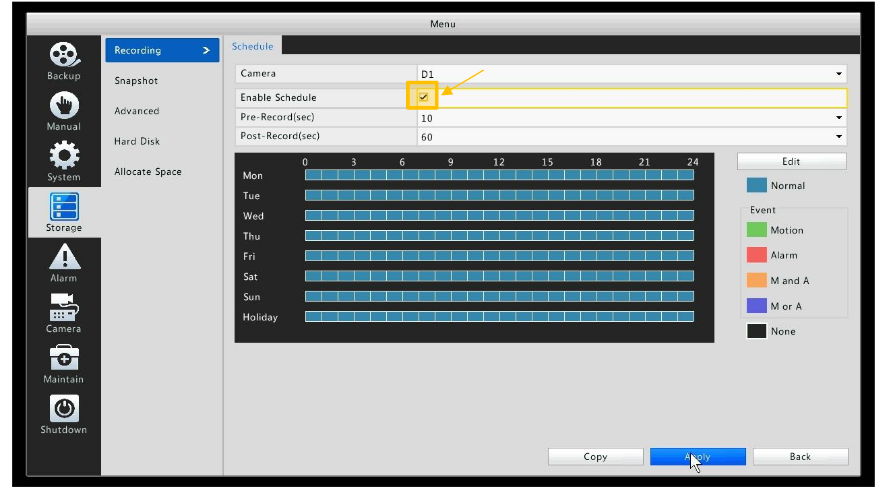
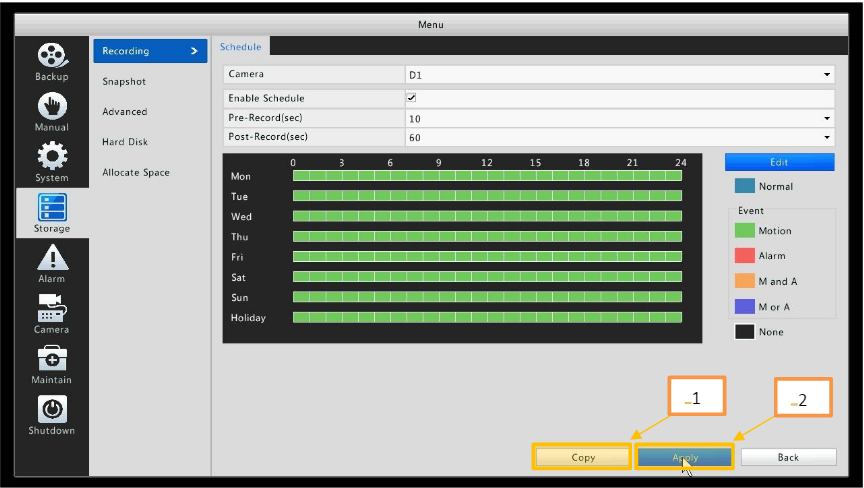
Step 1. First step in setting up your Uniview NVR to record on motion is to schedule the recording. To do so go to: Menu > Storage > Recording > Check in Enable Schedule, and then click Apply.
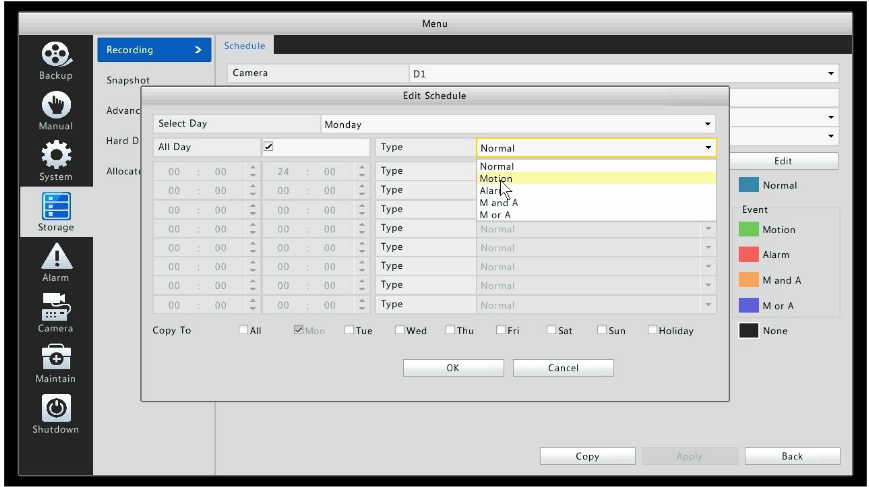
Step 2. Next, click Edit on the right side of the menu. In the Edit Schedule menu, select “Motion” from the drop down box.
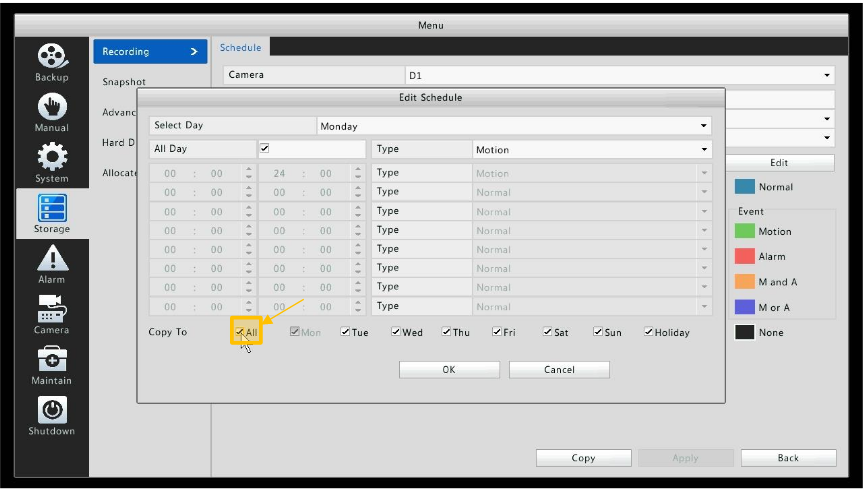
Step 3. Next you will select the days you wish to record on motion. In this setup we will select “All”. If certain days do not apply in your setup, be sure to leave them unchecked.
Once all days needed to record on motion are chosen, select OK. If you want you can customize it further and record only days that you’re interested in.
Step 4. Next, you will select Copy and choose all of the channels you wish to record on motion. Once chosen select Ok and finally hit Apply.
Here again, you can add certain channels on motion detection and other on continuous recording. It’s very convenient to customize in a pattern that work better for your location.
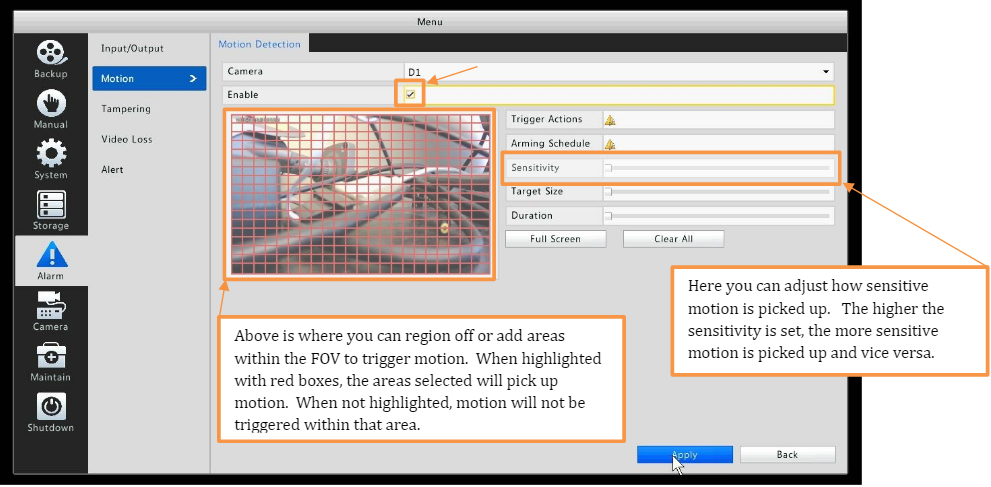
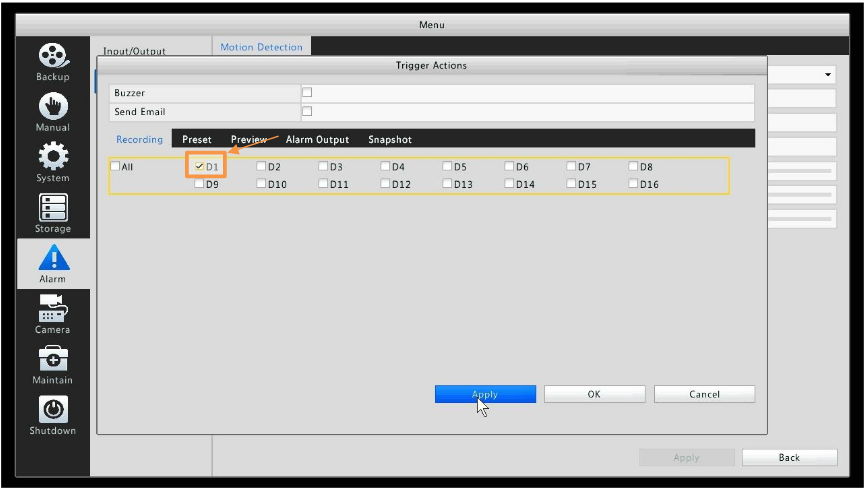
Step 5. Finally, you will set up your motion settings. To do so go to Menu > Alarm > Motion. Click the check box to enable motion for your selected channel, then select “Trigger actions” (refer to the second image below).
Within trigger actions under the Recording tab you will check box the matching channel number you are setting up. These two tasks need to be accomplished one at a time on each channel.
Once completed select “Apply” to save. You are now setup to record on motion. (If you’d like more in depth information in regards to Trigger actions and your other motion options, consult your NVR’s manual).
On the region you can add certain areas within the FOV to trigger motion. When highlighted with red boxes, the areas selected will pick up motion.
When not highlighted, motion will not be triggered within that area. Let’s say you have a tree with long branches that moves all the time, you can exclude that object from triggering the camera.
On the Sensitivity setting you can adjust how sensitive motion is picked up. The higher the sensitivity is set, the more sensitive motion is picked up and vice versa.
After all these settings are adjusted, your Uniview NVR or DVR will be able to record only when the motion algorithmic sensor is triggered.