

This article will show how to reset the admin password for Dahua DVR or NVR. If you lost or forgot your admin password and no longer can access your DVR, here you can find different methods to recover your lost/forgotten password.
The success of these methods depends on the model you have, manufacturing period, firmware version, etc.
Basically, to reset a Dahua DVR/NVR and recover the admin password, you need to either do a hard reset on the motherboard try the default password, or use a password generator to create a temporary password based on the DVR’s date (or serial number). Below we are going to detail each password reset method.
If you are using the new generation of Dahua DVRs or XVRs, you may need to check the article linked below. It shows a few other methods to reset the Dahua password.
Dahua Password Reset (DVR or NVR)
Follow the methods listed and explained below to reset your Dahua branded or OEM recorder.
Which brands can be reset?
The reset password methods shown here work for Dahua and their OEMs sold under these brands: Activecam, Advidia, Amcrest, Ameta, Ascendent, Backstreet Surveillance, BV Security, CCTV Security Pros, CCTV Star, CP Plus (Orange Line), Dax Networks, eLine, ENS (formerly Eastern CCTV and SavvyTech), Expose, Lorex, GSS, Honeywell, IC Realtime, Ikegami, Impath Networks, Inaxsys, IndigoVision, Infinity CCTV, Innekt, Intelbras, KBVision, Lumixen, Maxron, Montavue, Oco, Optiview, Rhodium, RVI, Saxco, Security Camera King (Elite), Space Technology, Speco, ToughDog, Tyco Holis, Tyco Illustra Essentials, Unisight, VIP Vision, Watchnet, Winic, Zuum.
How to know if your DVR or NVR is a Dahua OEM device? If the user interface is exactly the same or very similar then it’s most likely Dahua hardware and you can use this guide to recover your lost password.
Method 1. Reset the password by pressing the reset button
The success of this method depends on the DVR/NVR model you have, some of them come with a reset button that can be found on the motherboard.
Open up your recorder to check if there’s any reset button on the board. Take a look at the following pictures. The reset button should be a black circle and you’ll be able to press it.

Note that in this DVR/NVR model, the reset push button is located at the corner of the motherboard.
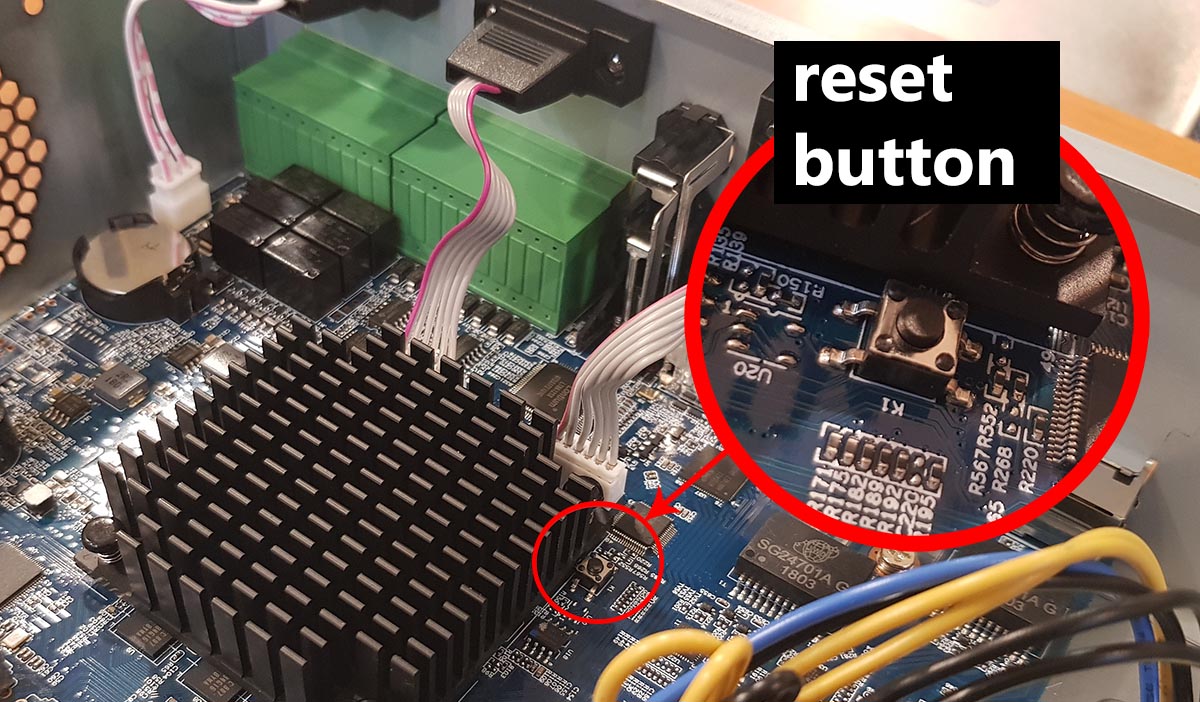
In this model, the reset button is located close to the processor. If you can’t find any reset button on your recorder, then your recorder doesn’t have one and you need to try the other methods.
Dahua started to manufacture a built-in reset button on the motherboard in late 2017. Earlier models don’t have a physical reset button.
If you are able to locate the reset button, follow this procedure to reset the Dahua DVR/NVR to factory default:
- Power off the DVR/NVR.
- Press and hold the reset push button.
- Power on the DVRNVR.
- Keep the reset push-button pressed for 30 seconds.
- After you see the startup wizard on the screen, create a new password.
Make sure you have a monitor connected to the DVR. The power cable must be disconnected before starting the procedure (step 1) then connect the cable while holding the reset button. You also can use the on/off switch at the back of the Dahua DVR/NVR (if there’s one).
Hold the reset button pressed for 30 seconds or until you see the startup wizard on the screen. Once the reset is done, the DVR/NVR will come back to factory default settings and you can create a new password.
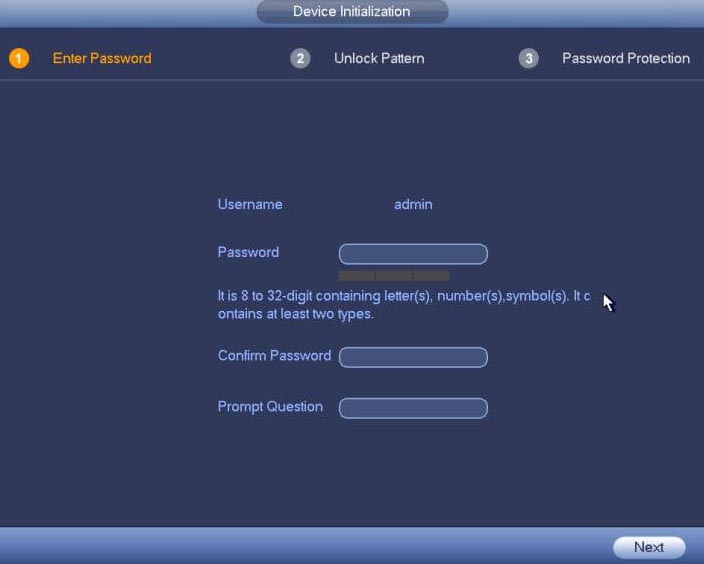
We recommend creating a strong password using a combination of letters, numbers, and symbols. Also, create the pattern and fill out the security questions (write them down in case you lose the password again).
Method 2. Try Dahua default passwords
You never know but this may be the solution to your problem. Try all the default accounts listed below and see if any of them work. If they work, you’re all set.
| Username | Password | Role |
| admin | admin | Master user |
| 888888 | 888888 | Administrator |
| 666666 | 666666 | Guest user |
| default | default | Hidden user |
If you’re able to log in, you can create a new account or modify the password. If this method doesn’t work or the account that works has guest authority only, you can try the next method.
Method 3. Use Dahua Daily Password Generator
For some of Dahua DVR/NVR, there’s a master password generator. You need to enter the current date showing up on the timestamp of the recorder and generate a password.
Be careful, the generator will generate a password based on the date (timestamp) you input, if you put the wrong date the generated password will be incorrect.

Type the year, month, and day (YYYYMMDD) into the Dahua password generator, and you will get a temporary password (valid for that date only). A sample is shown below.

After generating the temporary password use it to log in into your DVR/NVR and once you’re in you can modify the password. Use the temporary password as the old password.
You can download the Dahua password generator on this link. If this method still doesn’t work, try the next step.
Method 4. Try the CCTV Super Password Generator
This is another type of master password generator that works for certain recorders. Give it a shot and hopefully, it will work for you.
Download the CCTV Super Password app on Play Store only (Android phones), it’s not available for iPhones but you can try the online version (linked below).
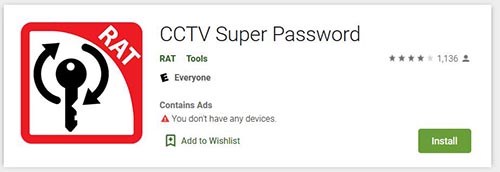
There are two Dahua password generators, one based on the date, the other based on the serial number. Try both until you get a hit.

Download the CCTV Super Password app
You can use the Dahua Password Generator online, check the links below:
If you can’t find the app through the store on your phone, you can download the CCTV Super Password on this link or on the Google Play Store link.
Type in the date from the timestamp (on the monitor/TV) or the serial number which can be found on the sticker/label underneath the recorder. The tool will generate a super password.
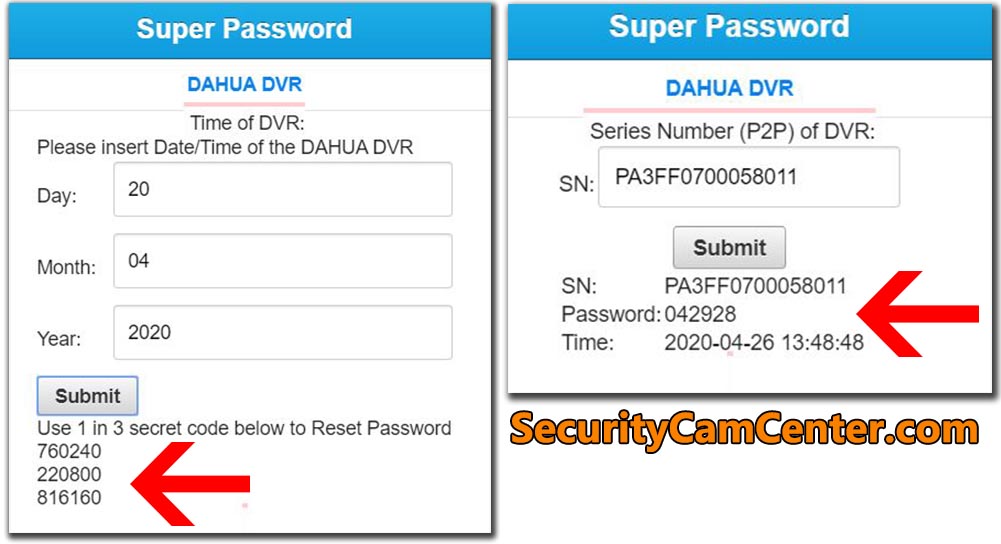 The generated super password is temporary and is meant to be used one time only, just to get access to your Dahua DVR/NVR. Once logged in, you need to modify the password, use the temporary password as the old one.
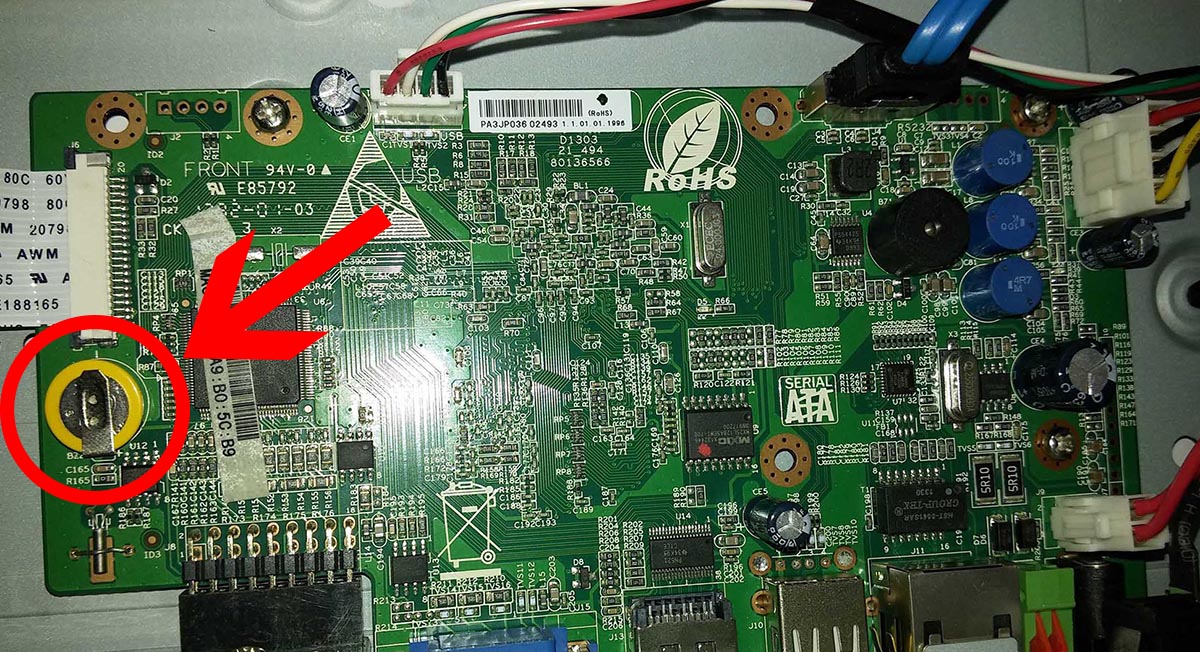
Method 5. Reset by removing the battery
Basically, if you remove the battery from the motherboard, the clock on the system will be reset and you can use a known master password to access the Dahua DVR/NVR.
Remove the battery and wait a little bit (usually 2 minutes) to have the DVR’s clock reset.
The DVR’s date/time stamp usually comes back to 01/01/2000 (the default one for this manufacturer).
Once you see this timestamp on the screen, try using the following username and password combination: admin (as username) and 668648 (as password) or admin (as username) and 000000000000 (as password).
Method 6: Reset by shortening the on-board contacts
There’s another way to do a physical factory reset on a Dahua recorder even when the reset button is missing.
While the classical reset that can be pressed is not present, the board has two contacts that need to be shorted together which will bring the recorder to factory mode (and erase the passwords).
To identify the correct jumper points for shorting the board, perform a visual inspection until you locate the terminals that are close together.
Here’s a helpful tip: typically, you’ll find two adjacent contacts, with one having a circular shape and the other a square shape. If there are more than two contacts, focus on those labeled J7 or J2.

Once you’ve pinpointed the correct contacts, follow these steps:
- Turn OFF the recorder.
- Take a jumper and briefly connect (short) the identified contacts.
- Turn the recorder back ON.

The recorder will automatically reboot, emit a beep, and return to its factory settings. Now, you can create a new password using the local interface, and your device will be ready for use.
If you have trouble identifying the contacts visually, you can use a voltmeter to check the voltage on all the pins.
Here’s how:
- Ground one probe of the voltmeter by touching the metal case.
- Use the other probe to measure the voltage on each contact.
The contact you’re looking for should read 3.3V on the meter. Avoid contacts showing 0V or 12V. If you find one with 3.3V, that’s the contact you need to short with a jumper.

Method 7. Call your dealer/seller
If you have purchased the Dahua DVR/NVR from a local Dahua dealer/store or reseller, give them a call and ask for help to reset the password.
Most of the time, this is the fastest and easiest way to reset your DVR or NVR. If you still can’t refer, maybe it’s time to upgrade your CCTV system. Take a look at our recommendation for the Best IP Security Camera Sytems.


