A useful and fun added feature of Wyze Cam is Time Lapse. A time lapse video is a series of photos taken by Wyze Cam over a period of time and shown as one video. This feature does require you to have a microSD card in the camera. Because it is saving still images and making them into one long video, you have to have a microSD card to save the files.
Setting up your Time Lapse
After you have installed a microSD card correctly, take these steps to turn on the Time Lapse feature.
1. Tap into your camera’s Live Stream from the Devices tab.
2. Tap the More icon and check that Motion Tracking and Pan Scan are turned off.
3. Set up your shot by using Pan and Tilt on Wyze Cam Pan and/or place the Wyze Cam with the correct viewing angle you want.
4. Tap the More icon, then tap Time Lapse.
5. Select the Start and End times, as well as the interval for the Time Lapse.
6. Tap Set to schedule the time lapse.
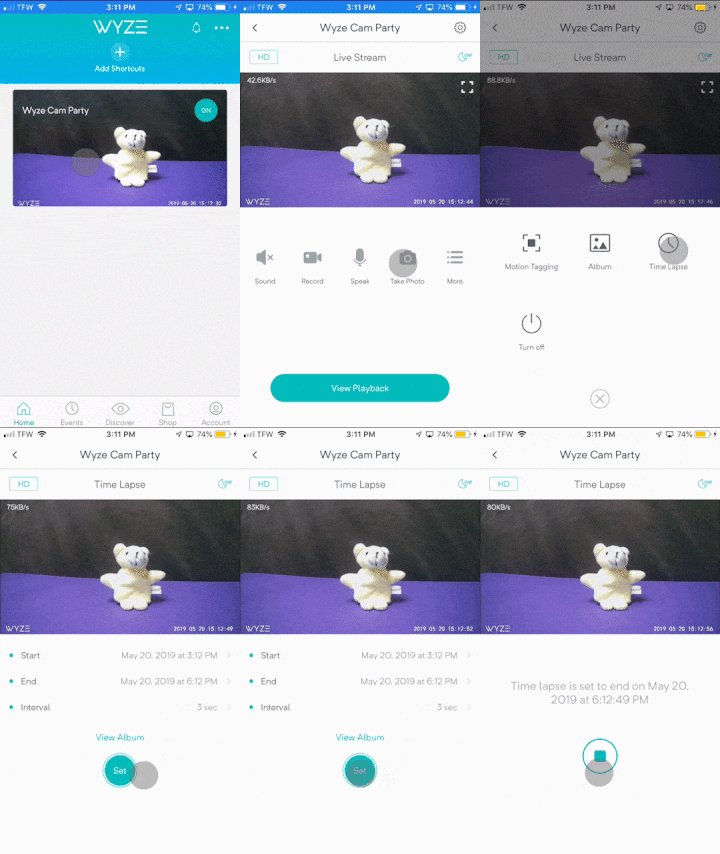 Your screen will change to a reminder of when your Time Lapse is scheduled to start or end. Hit the Stop button if you’d like to cancel the Time Lapse at any point. If you decide to cancel, any portion of the Time Lapse that has already been recorded will be available in your Album.
Creative Tip: If your Time Lapse is of a slow-moving motion, like a flower blooming, you will want the interval to be a minute or longer. If your Time Lapse is of a short-lived event, like clouds moving in the sky on a windy day, the interval should be around three seconds.
Viewing your Time Lapse
When your Time Lapse reaches the end of the scheduled time, it will be listed in the Album in your Wyze app. You access the Album by tapping the View Album button on the Time Lapse settings tab or from Live Stream > More icon > Album.
 The Time Lapse video needs to be downloaded from the microSD card to your phone’s gallery before you can view it. To do this, make sure that the Wyze app has permission to access your phone’s photo gallery, and your smart device is connected via WiFi (since they are big files).
If you have not granted this permission, you will not see the Time Lapse in the Album of your Wyze app. You can change the permissions for your phone or tablet’s photo gallery in your device’s settings in order to grant permission to the Wyze app to download and view your Time Lapse.
Tap on the Download icon on the video thumbnail to download the Time Lapse. You can also retrieve the Time Lapse directly from the microSD card by removing the card from the camera and reading it with a computer. A Time Lapse can be captured simultaneously with continuous recording. It is recommended to turn off Motion Tracking and Pan Scan when you are recording a Time Lapse.