In this article, we will show the steps you need to follow in order to fix the error message “No microSD installed in camera” that shows up on Wyze cameras when accessing Playback or Time Lapse. The method works for Wyze V1/V2 and Pan. Follow these troubleshooting steps below.
Important note: purchase a reliable microSD card, don’t go for the cheap brands.
How to fix Wyze “No microSD Installed In Camera”
Step 1. Make sure that you have a microSD card inserted into your camera.
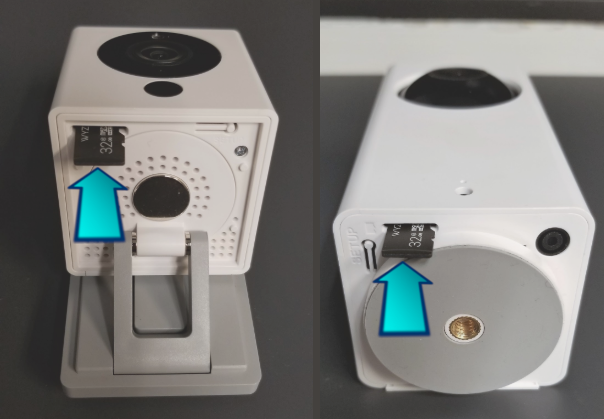
Step 2. Restart the Wyze app by force closing the app and opening it back up again. You have to completely close the app (not leave it running in the background).
Step 3. In the Wyze app, select the Live Stream of the camera you are having issues with. Allow it to fully load and try to View Playback by selecting the button on the bottom.
If the Plackback screen loads and doesn’t say “No microSD card installed in the camera,” the microSD is properly installed and recognized by the Wyze Cam.

If you are still experiencing “No MicroSD Installed” issue
Step 1. Confirm that the microSD card is recognized properly:
- Remove the microSD card from the camera.
- Insert the card in again.
- You should hear a “ding-ding” sound which indicates that the camera has detected the card successfully.
Step 2. If the camera does not make a “ding-ding” noise, check the contents of your microSD card from a computer or any other device which is capable of reading microSD cards.
- If the recordings appear on the card and play properly, but you’re still unable to view the recordings through Playback on the Wyze app, there is an issue with the camera reading the card.
- Try to format the card to FAT32 format using a computer (Please note: this will delete the contents of the card, please make sure to make a backup copy of the data which is essential).
- Formatting the card on a computer will repair any bad sectors on the card.
- After this please repeat step 1.
Step 3. If the card is not detected in the camera as well as a computer there may be an issue with the microSD card.
If available, try using a different microSD card and check if the camera is able to detect the alternate card. If the card is detected by a computer and is not detected by the camera, there may be an issue with the camera.